
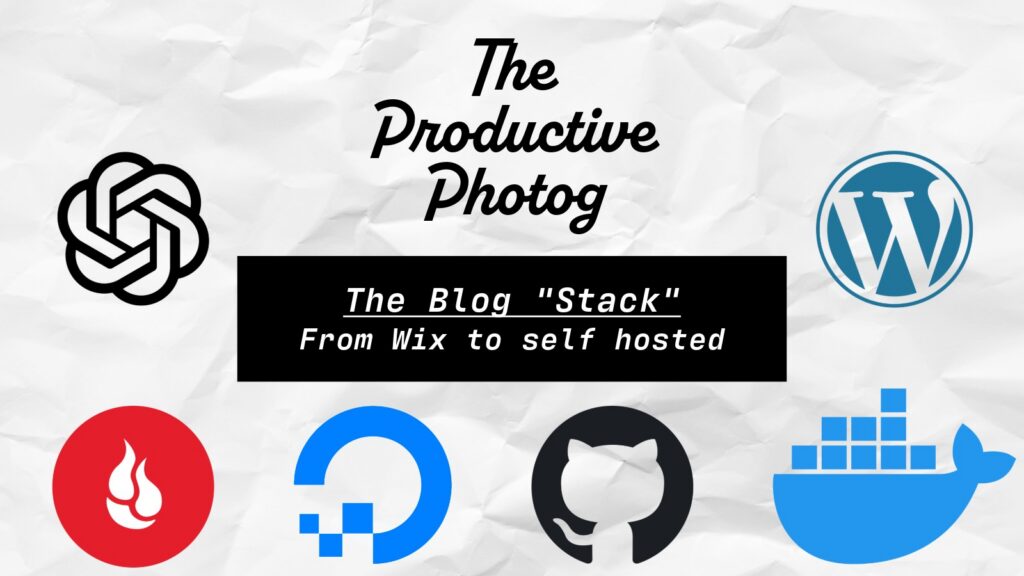
I moved this blog from Wix to a self-hosted WordPress stack. Here’s what I use to build, host, back up, and maintain The Productive Photog—and what it costs. You can read Goodbye Wix. Hello WordPress, but the TL;DR is pretty simple: I’d rather manage my own infrastructure than pay $300 a year for someone else to do it.
Is it more work? Yes. Do I get to nerd out with cool infrastructure projects? Also yes.
Once I decided to move away from Wix, I broke the new site down into six main categories:
- What I will use to build and manage the actual website
- Where the site will be hosted
- What infrastructure will support it
- Where the code and configuration will live
- How backups will be handled
- What will help me build and maintain everything
From there, I could start picking the individual pieces of the stack.
WordPress: Building and Managing the Blog
A long time ago, when I bought my first domain, mjhallphoto.com, I attempted to build my first ever website using WordPress.
It failed miserably.
Not to throw any shade at WordPress, but it was not that easy to use, especially for someone new to building websites. That is one of the main reasons I eventually made the move to Wix. Wix allows you to drag and drop panels, sections, images and text with ease. It just works.
Fast forward to 2026. Between the breakout of AI, agentic coding, and my desire to save some money, WordPress is a lot less intimidating.
Using Codex and the Wix plugin, I was able to pull over my existing articles, images, categories and general site structure into a fresh WordPress install.
A big driver for using WordPress is customization. Wix is great when you want to work within the system Wix gives you. I was starting to run into situations where I wanted to organize or build something differently and simply could not do it the way I wanted.
WordPress gives me a lot more freedom. If I want separate Articles and Blog sections, I can do that. If I want to completely change the menu structure, add a new content type, modify the theme or eventually build something custom, I can do so freely.
That flexibility comes with more responsibility, but that is kind of the whole point of this project.
DigitalOcean: Hosting My WordPress Site
WordPress needs a place to live. DigitalOcean is its home.
A little side quest of mine over the past few years has been home labbing. It started small with creating my own NAS. Like with most hobbies and interests of mine, things rapidly escalated.
Now I basically have a small business datacenter in my basement.
Technically, I have more than enough capacity to host WordPress locally at my house. But between the recent power outages in my neighborhood and the fact that a landscaping crew managed to cut my fiber internet, I figured it would probably be best for everyone if the website lived somewhere else.
I already lease several Virtual Private Servers (VPS) for various homelab, demo and production services, so I initially considered just grabbing another cheap VPS.
Instead, I went with DigitalOcean.
A DigitalOcean Droplet is still essentially a VPS, but I liked having a more complete cloud platform around it. If I want snapshots, firewalls, monitoring, additional storage or eventually a managed database, all of that is available in the same place.
It also gives me the part I actually want: my own Linux server that I can SSH into, run Docker on and configure however I want.
I am still managing the server myself, but I do not have to worry about the physical hardware, my home internet connection or whether the power is going to flicker while someone is trying to read one of my posts.
For a small WordPress site, it felt like a good middle ground between cheap hosting and running the whole thing out of my basement.
Docker: Running the Site in Containers
Docker is what ties most of the site infrastructure together.
Instead of installing WordPress, the database, and the web server directly onto the VPS, I run each of them in its own container.
That keeps everything separated, organized, and much easier to rebuild if I ever need to move or replace the server.
The configuration also lives in GitHub, so I can recreate the same environment without starting from scratch.
Docker definitely adds some complexity, but for this kind of setup, I think the portability and organization are worth it.
GitHub: Version Control and Site Configuration
GitHub is where all of the code and configuration for the site live.
I have used GitHub for all of my projects. It gives me one central place to store the files that make the site work, instead of having everything live only on the server.
That includes things like the Docker configuration, WordPress-related files, deployment files, and any custom code.
The biggest benefit is version control. If I make a change and completely break something, I can see exactly what changed and roll it back. I can also make changes locally on my MacBook, test them, and then push everything to GitHub before deploying it to DigitalOcean.
If I ever decide to leave DigitalOcean, rebuild the server, or move everything somewhere else, I am not starting from scratch. The setup already exists in GitHub and can be used to recreate the environment.
The actual WordPress posts and database still live inside WordPress, so GitHub is not really storing the blog itself.
That distinction is important, and it is one of the reasons I like this setup so much. The server can disappear tomorrow and, as long as I have my backups and GitHub repository, I am not completely screwed.
Backblaze: Offsite WordPress Backups
Backblaze handles the offsite backups.
Since I am managing the server myself, I also need to make sure I have a way to recover if I break something, lose the server, or completely screw up the database.
The important WordPress files and database backups are copied off the DigitalOcean server and stored separately in Backblaze.
That gives me a second copy of the site somewhere other than the server it is actually running on.
It is probably the least exciting part of the stack, but also one of the most important.
ChatGPT and Codex: Building and Maintaining the Stack
The cat’s out of the bag – I use AI to help build and maintain my new blog site. Call me crazy, but it does a heck of a better job than I could ever do. Could I learn how to do all of this myself? Absolutely. Do I have four kids, a full-time job and also jump between projects on a daily basis? Absolutely!
For this particular project, I first laid out my concerns and goals to ChatGPT. Once we had a plan, ChatGPT generated the prompts that I then fed into Codex. OpenAI currently has the Wix plugin, which allows Codex to manage various features on my Wix site. Codex was able to pull out all of my current articles, images, and site structure. We built out the new site locally (on my MacBook Air using Docker Desktop) before pushing to GitHub.
There is more to it than just that, but I figured I would be honest about my use of AI in this whole project. It is not cheating!
What My WordPress Stack Costs Compared With Wix
My Wix subscription was $300/yr. Let’s break down my new stack:
- My ChatGPT Pro subscription: $1,200/yr (an existing expense I use beyond this blog)
- WordPress: Free
- DigitalOcean: ~$173/yr
- GitHub: Free
- Docker: Free
- Backblaze: Free (currently well under the 10 GB free tier)
Total: $1,373/yr
Now yes, I know what you are thinking.
“But Mike, you aren’t saving squat!”
Yes, yes, I know. On paper, the savings are nonexistent.
But there is one pretty important distinction here: I would be paying for ChatGPT Pro regardless of whether this blog existed.
With Wix, basically every dollar I spent was tied directly to The Productive Photog. The site disappears, and there is no reason for me to keep paying Wix.
ChatGPT is completely different. I use it to help build and maintain this site, but I also use it for other applications, my workout logger, projects I build for other people, and plenty of random day-to-day stuff.
So while the full ChatGPT subscription is technically part of the stack, I do not really consider the entire $1,200 a cost of running this blog.
In fact, I have already made enough money from other applications I built with its help that the subscription has paid for itself.
If I only count the services that exist specifically to keep The Productive Photog online, the cost is much closer to $173 per year.
That is a lot easier to compare against the $300 I was paying Wix.
Was Moving From Wix to WordPress Worth It?
Sometimes it’s not about the destination, it’s about the journey there.
I had a lot of fun building out this stack. From planning to migrating, it was a fun experience and I am excited to continue improving it.
I am in control of my own site. I can change how it looks, how it is organized, where it is hosted, and how everything behind the scenes works.
Could I have stayed with Wix and saved myself a bunch of time? Absolutely. But then I would not have learned nearly as much, and I definitely would not have had as much fun.
So yes, for me, it was worth it.